

How to Reduce Cart Abandonment: 15 Fixes for WooCommerce Stores
Knowing how to reduce cart abandonment is essential to maximize the potential revenue for your WooCommerce store. Many shoppers want to buy, but unexpected shipping costs, confusing checkout steps, and payment issues drive them away. These problems create frustration and make customers abandon their purchases. If you don’t fix them, you’ll keep losing sales.
In this guide, we’ll share 15 practical ways to reduce shopping cart abandonment in WooCommerce and help more shoppers complete their orders.
Why Do Customers Abandon Their Shopping Carts?
Shoppers leave at the cart and checkout stages for several common reasons.
According to Baymard Institute, the average documented cart abandonment rate is around 70%, based on 50 studies. The research identifies extra costs, account creation requirements, delivery concerns, and checkout problems as common reasons for abandonment.
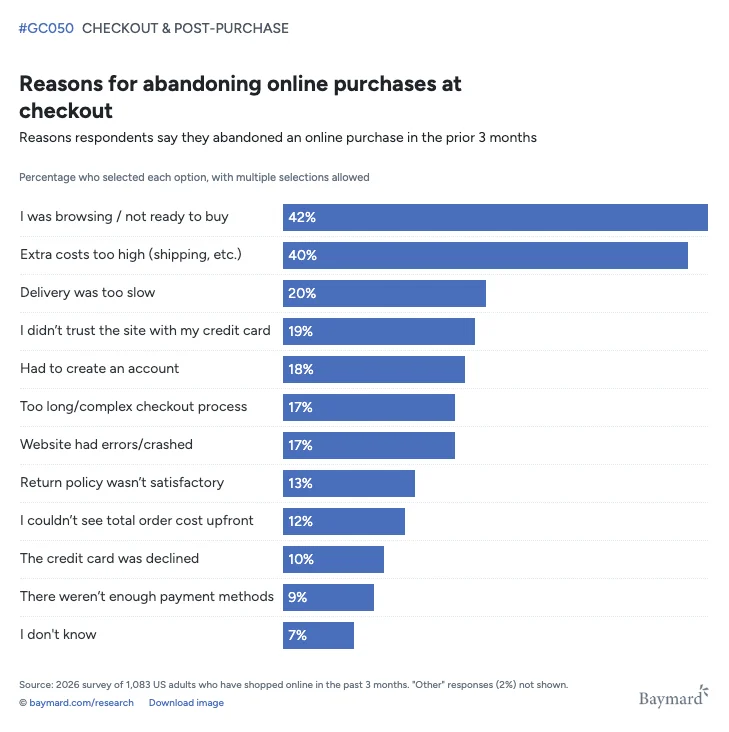
The chart shows the most common of these reasons.
Cart Abandonment vs. Checkout Abandonment
Before measuring the problem, you should understand how cart abandonment differs from checkout abandonment.
Cart abandonment happens when someone adds products to a shopping cart but doesn’t complete the purchase. Checkout abandonment happens after someone starts checkout but leaves before placing an order.
For example, a customer adds a pair of shoes to their cart and closes your website. That’s cart abandonment.
Another customer enters their shipping address, sees an unexpected delivery fee, and leaves the checkout page. That’s checkout abandonment.
Both affect completed purchases, but checkout abandonment points more directly toward problems in your checkout process.
How to Measure Your WooCommerce Cart Abandonment Rate
Your cart abandonment rate shows the percentage of tracked shopping carts that don’t result in purchases. Measuring that rate gives you a starting point before you make changes.
Accurate measurement requires consistent cart tracking and a clear understanding of where shoppers leave.
Calculate Your Cart Abandonment Rate
You can calculate your cart abandonment rate by comparing the number of tracked carts with the number of completed purchases.
Use the following formula.
Cart abandonment rate = [(Total shopping carts − Completed orders) ÷ Total shopping carts] × 100
For example, if your WooCommerce store records 800 shopping carts and 280 completed orders:
[(800 − 280) ÷ 800] × 100 = 65%
Your cart abandonment rate is 65%.
The numbers in this example are hypothetical. Accurate reporting requires you to count each cart consistently and match purchases to the same group of carts.
A shopper who adds three products to one cart shouldn’t automatically count as three abandoned carts.
Identify Where Shoppers Leave the Checkout Process
You can use Google Analytics 4 (GA4) to identify where shoppers leave your purchasing process.
GA4 supports ecommerce events that track important actions, but your store has to send them, usually through a GA4 integration plugin or Google Tag Manager. The key events are:
- add_to_cart: A customer adds a product to their cart.
- begin_checkout: A customer starts checkout.
- purchase: A customer completes a purchase.
For example, suppose many customers begin checkout, but relatively few complete their orders. In that case, you should investigate checkout forms, payment methods, and possible technical errors.
Google explains the setup in its ecommerce measurement documentation.
How to Reduce Cart Abandonment in WooCommerce: 15 Practical Fixes
Reducing cart abandonment starts with removing the obstacles customers face while shopping and checking out. WooCommerce includes settings for several of these improvements, while others require testing or an additional plugin.
1. Show Shipping Costs and Additional Fees Early
Unexpected shipping charges can make customers reconsider an order after they’ve already decided to buy.
Imagine adding a $40 product to your cart and discovering an extra $12 shipping charge during checkout. Your $40 purchase is suddenly $52, and that’s 30% more than you planned to pay.
Your customers need clear shipping information before reaching the payment step.
If you offer free shipping on orders over $75, display that condition near relevant product prices or on the cart page.
Shipping costs that depend on a customer’s location should appear as estimates until the store has enough information to calculate the final amount.
After updating the settings, test several shipping addresses and confirm that the charges appear correctly.
2. Enable Guest Checkout in WooCommerce
Guest checkout lets customers place eligible orders without creating accounts on your website.
Imagine someone visiting your store to buy a single product. Forcing that shopper to register and create a password adds work that may not be necessary.
WooCommerce includes a built-in guest checkout option. You can still offer optional account creation for shoppers who want to manage their orders.
Some products still require customer accounts. WooCommerce Subscriptions, for example, requires an account for subscription purchases.
Open your store in a private browser window and place a test order to confirm that guest checkout works.
3. Remove Unnecessary Checkout Fields
Removing unnecessary checkout fields helps customers finish their purchases with less typing.
For example, a store selling clothing to individual shoppers may not need everyone to enter a company name. The Checkout block hides the company field by default, so check whether someone turned it on.
WooCommerce’s Checkout block includes built-in controls for three fields: Company, Address line 2, and Phone.
If your store uses the classic shortcode checkout, you can change the same three fields in the WooCommerce Customizer under Appearance → Customize → WooCommerce → Checkout. WooCommerce saves these three settings globally, so a change applies to both checkout types and to customer address forms in My Account.
You customize other fields differently in block and shortcode checkouts. Check which version your store uses before installing a field editor or adding PHP code.
Keep every field required for shipping, payment processing, taxes, and legal compliance.
Add a physical product to your cart and complete a test order after making changes. Confirm that your store still collects the necessary details, and repeat the check on a mobile screen.
4. Make the Checkout Process Easier to Complete
A clear checkout layout helps customers understand what information they need to enter and how to finish their orders.
Even a short form can become frustrating when the order summary is difficult to find, or the payment button doesn’t stand out.
Open your checkout page and review the buying process from a new customer’s perspective.
Keep related fields together and use clear labels. Make the final order total easy to review before payment.
Error messages should explain what customers need to correct. Unnecessary promotions and links shouldn’t distract shoppers while they’re completing checkout.
A one-page checkout layout may help if it reduces unnecessary steps. However, a crowded one-page form can create problems of its own.
Ask someone unfamiliar with your store to place a test order. Watch where they hesitate and improve those parts of the page.
5. Offer Convenient and Reliable Payment Methods
Offering suitable payment methods helps customers complete purchases using options they already trust.
A customer shopping on a phone may prefer to pay with a digital wallet instead of typing card information. Another shopper may want to use PayPal or a regular card payment.
WooCommerce lets you configure payment gateways through its payment settings. Depending on your country and provider, you may be able to accept cards, PayPal, Apple Pay, or Google Pay.
Check whether your payment extensions support the WooCommerce Checkout block if your store uses it.
Payment reliability matters too. Test successful and declined transactions using your gateway’s test environment so customers don’t encounter avoidable payment errors.
6. Improve WooCommerce Checkout Page Speed
A faster checkout helps customers complete purchases without waiting for pages, totals, or payment requests to respond.
Slow checkout pages can confuse customers. For example, a customer might click Place order several times because nothing appears to happen.
Start by testing checkout on desktop and mobile devices.
Review your hosting performance, unnecessary plugins, JavaScript errors, and caching settings if you notice delays.
WooCommerce cart, checkout, and account pages contain customer-specific information. WooCommerce recommends excluding these pages from full-page caching.
Check your caching plugin or hosting settings to confirm they exclude these pages.
You can use PageSpeed Insights to investigate performance, but you should test the actual checkout process as well.
Complete a test order after changing performance settings. Confirm that shipping calculations, payment requests, and order confirmation still work.
7. Make Your Store’s Checkout Mobile-Friendly
A mobile-friendly checkout lets customers enter their details and complete payments comfortably on smaller screens.
A checkout page that looks fine on a computer may have crowded fields, small buttons, or hidden error messages on a phone.
Open your WooCommerce store on a smartphone and try placing an order.
Check the following:
- Form fields are easy to read and select.
- Buttons have enough space for tapping.
- The page fits the screen without horizontal scrolling.
- Payment options display correctly.
- Error messages remain visible.
- The final purchase button is easy to find.
Try completing the address form without zooming in.
Payment windows deserve particular attention because a poorly displayed form can stop a customer at the final step.
Test your checkout on different mobile browsers when possible.
8. Build Customer Trust Before Payment
Clear store information helps customers feel more comfortable placing orders and entering payment details.
Shoppers may hesitate when they can’t find your return policy, contact details, or information about payment security.
Make important policies easy to access from product pages, the cart, and checkout.
Display genuine customer reviews, accurate contact information, and clear shipping and refund conditions.
Your store should use HTTPS and properly configured payment gateways.
Payment provider logos can help customers recognize accepted methods, but avoid security badges or certifications your store doesn’t actually have.
A clear return policy may answer a customer’s concern more effectively than several generic trust badges.
Review your checkout as a first-time customer and confirm that you can find important information before placing an order.
9. Make Product Details and Delivery Expectations Clear
Accurate product information helps customers confirm they’re ordering the correct item before completing payment.
Imagine a shopper who adds a shirt to their cart but can’t tell whether they picked the right size or color.
Missing variation details can make customers return to the product page, interrupting their purchase.
Review your product descriptions, images, available variations, and stock information. Provide realistic delivery estimates when your store has enough information to calculate them.
Add different product variations to your cart and check what customers see throughout checkout.
10. Provide Help When Customers Have Checkout Questions
Accessible customer support helps shoppers resolve questions before leaving their carts.
A customer may need to confirm delivery time, product compatibility, or return conditions before placing an order.
You can answer common questions through a product FAQ tab, clear policy pages, and a visible contact option.
Live chat may help if your team can respond reliably. A contact form or support email can work when live assistance isn’t available.
Keep support options easy to find without letting chat widgets cover checkout fields or payment buttons.
Review the questions customers ask most often. Add clear answers near the relevant product or checkout information so shoppers don’t need to search elsewhere.
11. Let Customers Save Their Carts for Later
Saved carts and wishlists help customers keep track of products they aren’t ready to buy yet. Some customers compare products across several stores. Others want to wait until they have more time or money before ordering.
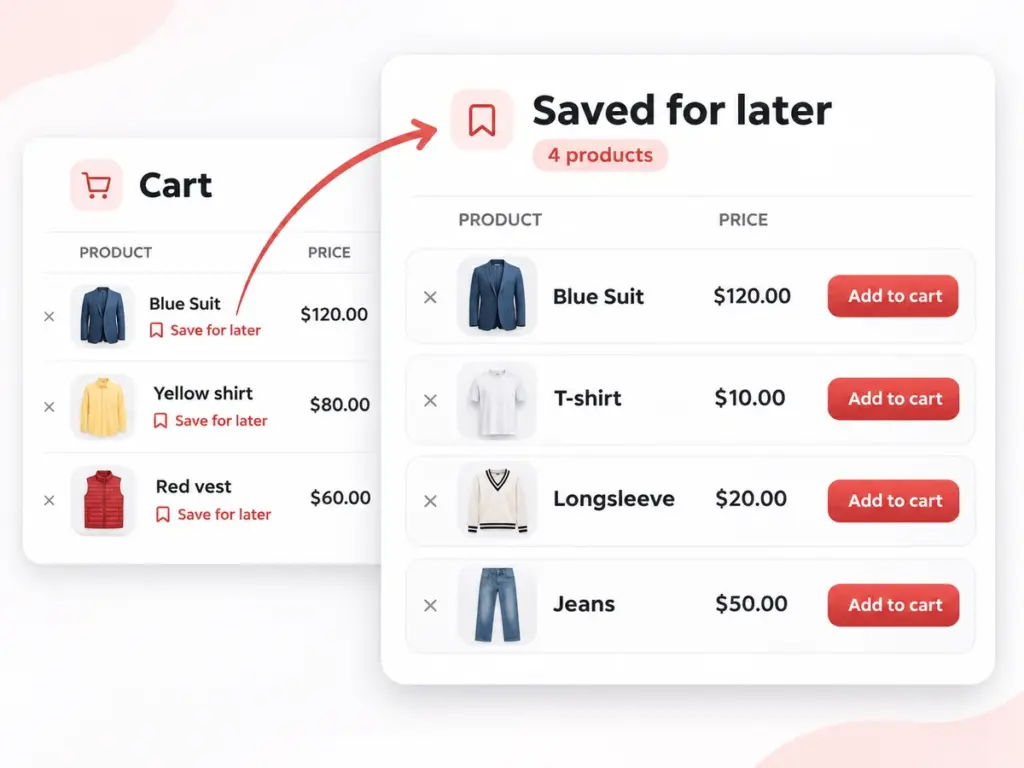
WooCommerce 10.9 and later include experimental Save for Later and Wishlist features, but only for logged-in shoppers.
That’s why a wishlist or saved-cart plugin is still the safer option to help shoppers keep track of their choices.
Choose an extension that supports your WooCommerce setup and the types of customers you serve.
Check whether the feature works for guest shoppers, registered customers, or both.
Saved carts and recovery emails serve different purposes. Saved carts let customers return on their own, while recovery emails remind eligible shoppers about unfinished purchases.
Test the feature by saving a few products, leaving your store, and returning later. Confirm that you can access the correct items.
12. Use Exit-Intent Offers Carefully
An exit-intent popup can help address a customer’s concern before they leave your store.
For example, a shopper who is unsure about shipping might find a short message linking to your delivery information useful.
Exit-intent tools look for behavior suggesting that someone may leave the page.
You can use a popup to offer checkout help, explain a policy, or present a suitable discount.
Keep the message short and avoid repeatedly interrupting customers.
Desktop exit-intent detection often uses mouse movement. Mobile devices behave differently, so the same detection method may not work reliably.
Test popup behavior on desktop and mobile devices. Check whether the offer improves completed purchases instead of judging it only by popup views.
13. Send Automated Abandoned Cart Recovery Emails
Automated abandoned cart emails remind eligible shoppers about products they left behind and help them return to checkout.
A customer may leave because something interrupted them or they wanted more time to decide. A friendly reminder can make returning easier.
You can create a short email sequence instead of sending only one message. ShapedRecover includes templates for starter campaigns, and you can set a send delay for each email.
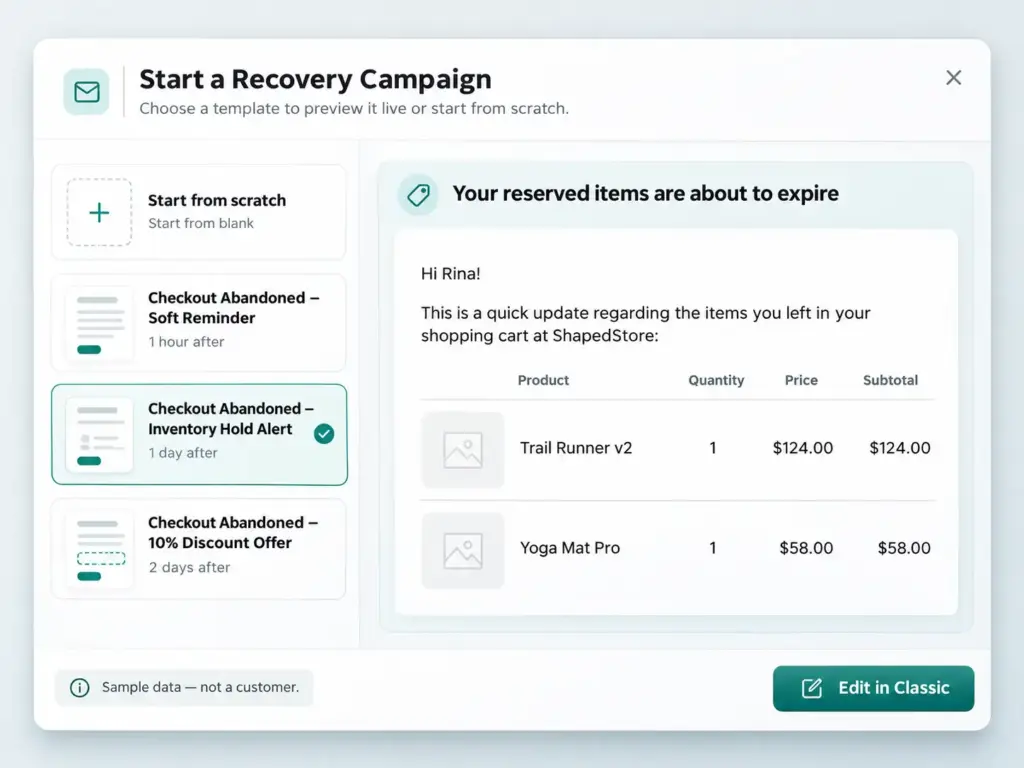
For example, an initial email can remind shoppers about their products. A later message may answer common questions, while another can include an incentive when appropriate.
Test your timing and avoid sending too many reminders.
Email recovery requires a usable email address and an appropriate legal basis for contacting the customer. ShapedRecover helps here with a built-in consent checkbox, an unsubscribe link in every email, and data retention limits.
Test the emails with your own address and confirm that reminders stop after a purchase.
14. Use a WooCommerce Abandoned Cart Recovery Plugin
A WooCommerce abandoned cart recovery plugin helps you track unfinished purchases, send reminders, and monitor recovered orders.
Manual follow-up becomes difficult when your store receives many abandoned carts. Recovery automation can handle repeat tasks without requiring you to contact each shopper individually.
ShapedRecover supports abandoned cart tracking, automated emails, cart restoration, recovery coupons, and reporting.
ShapedRecover saves a guest’s cart about a second after they type a valid email at checkout, on both block and classic checkout. For logged-in customers, it uses their account email, so there’s nothing to type.
15. Offer Targeted Discounts Without Reducing Profit Unnecessarily
Targeted discounts can encourage hesitant shoppers to return, but every discount cuts into your margin and can lower your average order value.
Suppose you offer 10% off a $100 cart. The discount reduces the product total by $10. If your margin on that cart is $25, the coupon cuts your profit by 40%.
Your store still needs to cover product costs, payment fees, and any applicable delivery expenses.
Consider offering discounts to selected shoppers instead of including coupons in every recovery message.
Free shipping may be another option when delivery costs are a common concern. WooCommerce lets you create coupons with discount amounts and usage restrictions. Recovery coupons can be a percentage or fixed-cart discount, with optional free shipping on top. Each generated coupon is unique to the shopper, applies automatically when they return, and can expire anywhere from 1 hour to 365 days.
Before sending an offer, review the coupon conditions and calculate the expected profit.
Test the coupon during checkout to confirm that it applies correctly.
How to Check Whether Your Fixes Reduce Cart Abandonment
Your WooCommerce reports and checkout tests can help you understand whether more customers complete purchases after you’ve made changes.
Compare the results with your original numbers and review how your recovery campaigns perform.
Track Recovered Carts and Revenue
You can measure recovery performance by reviewing what happens after shoppers receive cart reminders.
Useful metrics include:
- Abandoned carts that meet your tracking rules.
- Recovered carts that lead to completed purchases.
- Recovery rate.
- Revenue associated with recovered orders.
ShapedRecover provides reporting for abandoned carts, recovered orders, and revenue.
Recovered revenue doesn’t necessarily represent additional sales caused entirely by your emails. Some shoppers may return without receiving a reminder. ShapedRecover uses strict sale attribution: a sale counts only if the shopper returns through the recovery link within 14 days, and refunded or canceled orders don’t count.
Use these reports to understand performance and decide which recovery messages need further testing.
Test Checkout and Recovery Workflows Regularly
Regular checkout testing helps you catch problems caused by WooCommerce updates, theme changes, or new plugins.
After making important changes, check the full buying process and confirm the following:
- Guest checkout works.
- Logged-in customers can place orders.
- Mobile checkout displays correctly.
- Payment methods process test transactions.
- Shipping rates calculate correctly.
- Coupons apply as expected.
- Recovery links restore the correct products.
- Recovery emails stop after completed purchases.
Test major changes on a staging website before applying them to your live store, especially as you prepare for Black Friday.
Final Thoughts
Even after making these improvements, some customers will still leave their carts behind. An abandoned cart recovery plugin like ShapedRecover can help you reconnect with those shoppers through timely email reminders and easy cart restoration.
Start with the problems affecting your store, apply the relevant cart abandonment best practices, and track your results. Over time, you’ll understand what works best for your customers and where you can recover more missed sales.
ShapedRecover is free on WordPress.org. Install it, run the 4-step guided setup, and your first recovery campaign can go live today.
Frequently Asked Questions (FAQ’s)
The following answers address common questions about cart abandonment rates, recovery tools, and reminder emails.
What Is a Good Cart Abandonment Rate?
A good cart abandonment rate depends on your industry, customers, devices, and tracking method.
Baymard Institute reports an average documented rate of around 70%, but individual stores can have different results.
Measure your own rate consistently and compare performance over time to understand whether checkout changes help.
Does WooCommerce Automatically Recover Abandoned Carts?
WooCommerce 11.0 added an experimental, off-by-default email that sent one reminder for eligible pending orders, but WooCommerce removed it in version 11.2. Core WooCommerce doesn’t run recovery campaigns, so stores use a plugin such as ShapedRecover. The free version of ShapedRecover tracks abandoned carts and abandoned checkouts, and sends timed multi-email campaigns. For guest shoppers, tracking starts once they enter an email address at checkout.
Can You Recover Abandoned Carts From Guest Customers?
You can recover some guest carts when your store captures the information needed to contact the shopper.
ShapedRecover can capture guest cart information after shoppers enter an email address at checkout.
When Should You Send Abandoned Cart Recovery Emails?
You should send the first reminder after a cart meets your configured abandonment conditions.
A later follow-up can remind shoppers who haven’t completed their purchases.
Test different schedules based on your products and customers. Stop sending reminders once a shopper completes a purchase or unsubscribes.
Why Are My WooCommerce Abandoned Cart Emails Not Sending?
Recovery emails may fail to send because of inactive campaigns, missing customer addresses, scheduling problems, or email delivery configuration. If you use ShapedRecover, the 4-step guided setup includes a step that checks your email sending.
Check whether the cart qualifies for recovery, then review your email settings and scheduled tasks.

Leave a Reply